Short Answer Task
________________________________________________________________________________________
CONTENTS
AI summarization for task responses
________________________________________________________________________________________
What is a short answer task?
A short answer task provides the respondent with the ability to answer in paragraph format. This task type is ideal for situations where an open-ended explanation best describes the task at hand. While this task type is named short answer, there is no character limit and voice-to-text can be used instead of typing for longer responses.
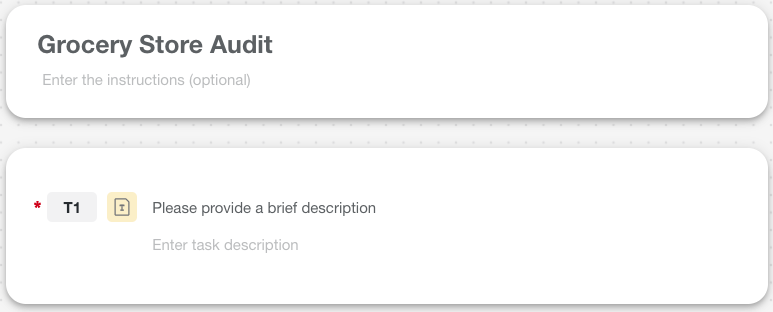
Short answer task in the Mission builder
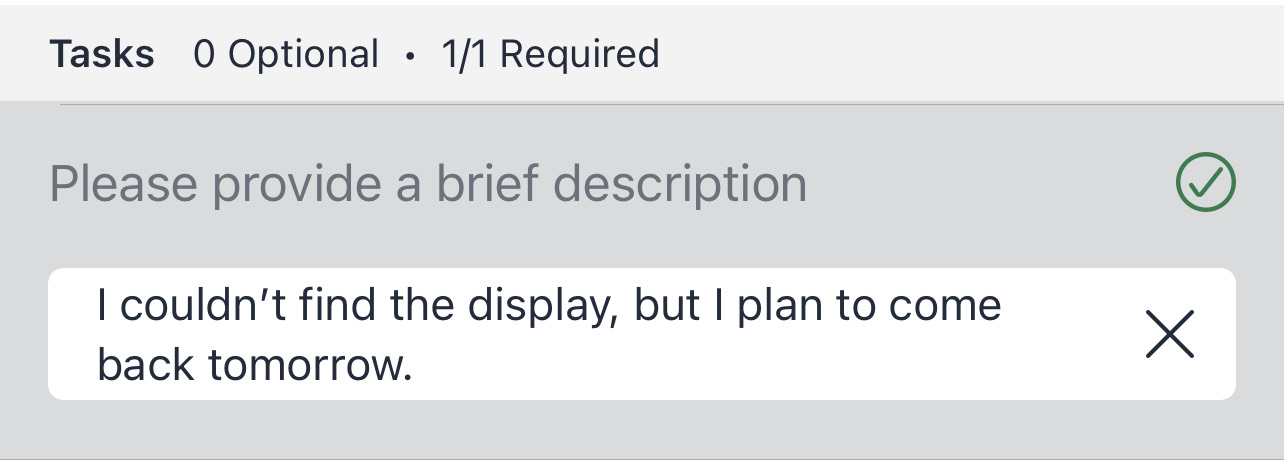
Short answer task on a mobile device
Create a short answer task
There are three ways to create a short answer task in the Mission builder.
- Select Add Component on an empty Mission builder canvas. This button is only available when adding the first task to a new Mission or section.
- Drag and drop Short Answer from the components panel onto the Mission builder canvas. This can be done on an empty canvas or at any stage of Mission building.
- Click the ‘+’ sign above or below any existing task and choose Short Answer from the components list.

Configure a short answer task
-
Task title: Title your newly created task in a way that clearly indicates a text-based response is expected.
-
Task description: If the task requires specific instruction or further information, add a brief task description to help the user interpret the assignment.
-
Set a task mode: Newly created tasks are required by default, meaning the user must submit a response. Tasks can be changed to optional in the Task Mode dropdown. If your company has advanced logic enabled, tasks can also be configured as Read Only. Read-only tasks cannot be answered, rather, they are used to display information to the user.


Add conditional tasks
At this time, conditional logic cannot be added to a short answer task.
Read more on conditional logic here.
AI summarization for task responses
You can summarize task responses with AI, gaining more insight into the value your field teams are bringing. From the Mission Overview Screen, locate the short answer task you want insights on. Click the AI icon.
Clicking the AI icon will take you to the Task Response detail view. Summarization will start as the page loads. Watch the insights come together!
Once generated, the summary response is cached until a new response comes in or up to 1 hour, whichever happens first. Users across the company who have permission to see any given Mission will see the same summary. This will help with consistency and improving communications internally.
The AI Summary will only summarize the first 500 responses, from most recent to oldest, for any given time-frame. We recommend verifying any filters you have active result in 500 or less responses.
The AI Summary is available to any role that can see the Mission.