Tag Edit Mode
What is Tag Edit Mode?
Tag Edit Mode allows a user to make one or more Tag Edits in a single Tag Editing Session for all non-Menu images.
Tag Edits allow reps to make UPC-level edits to products identified in enabled scene types. These edits will change the product tag values in downstream reporting tools.
Important Note: Tag Editing is configured at the company level for Image Recognition Customers. If you do not see the Tag Edits functionality in your mobile app, please contact your CSM for more information.
Making a Tag Edit
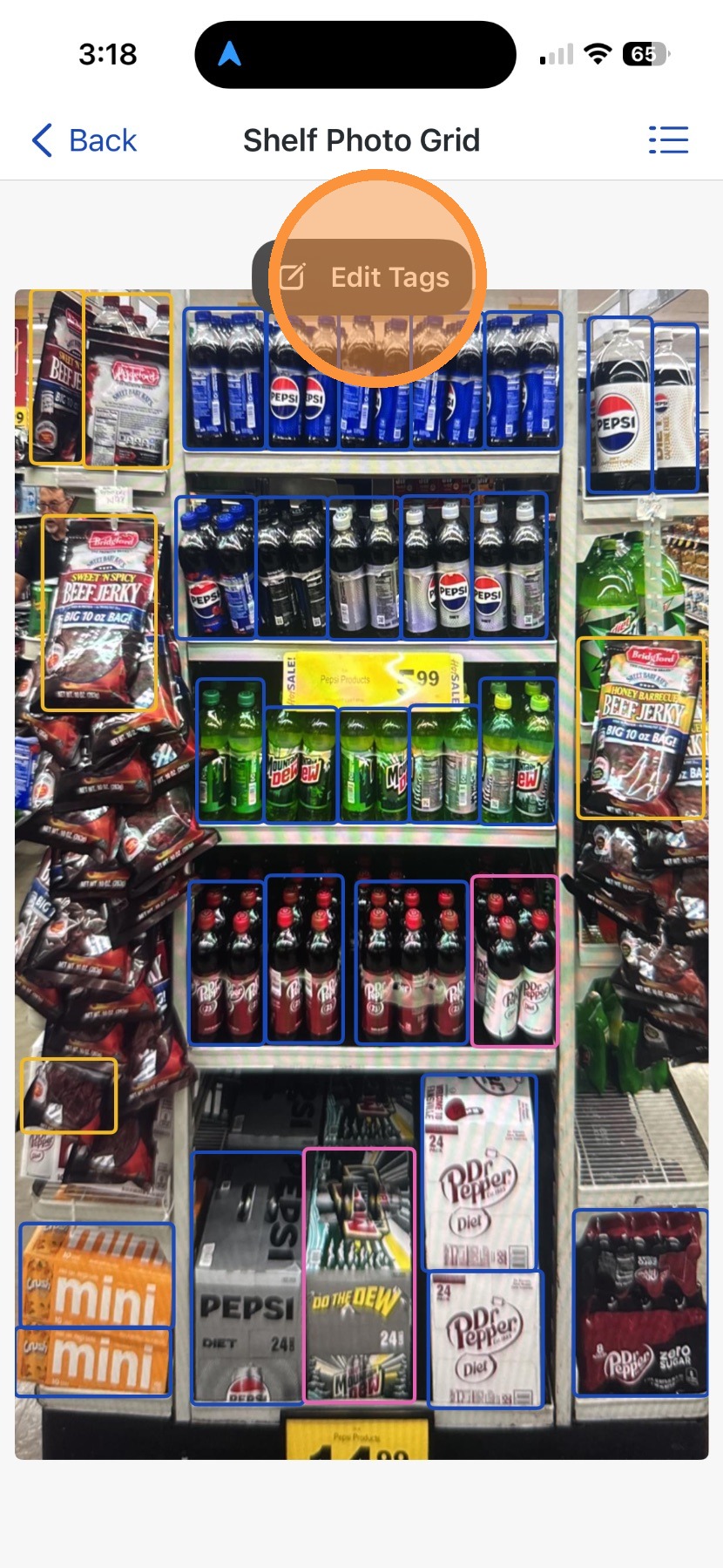
Tap Edit Tags to start a Tag Editing Session.
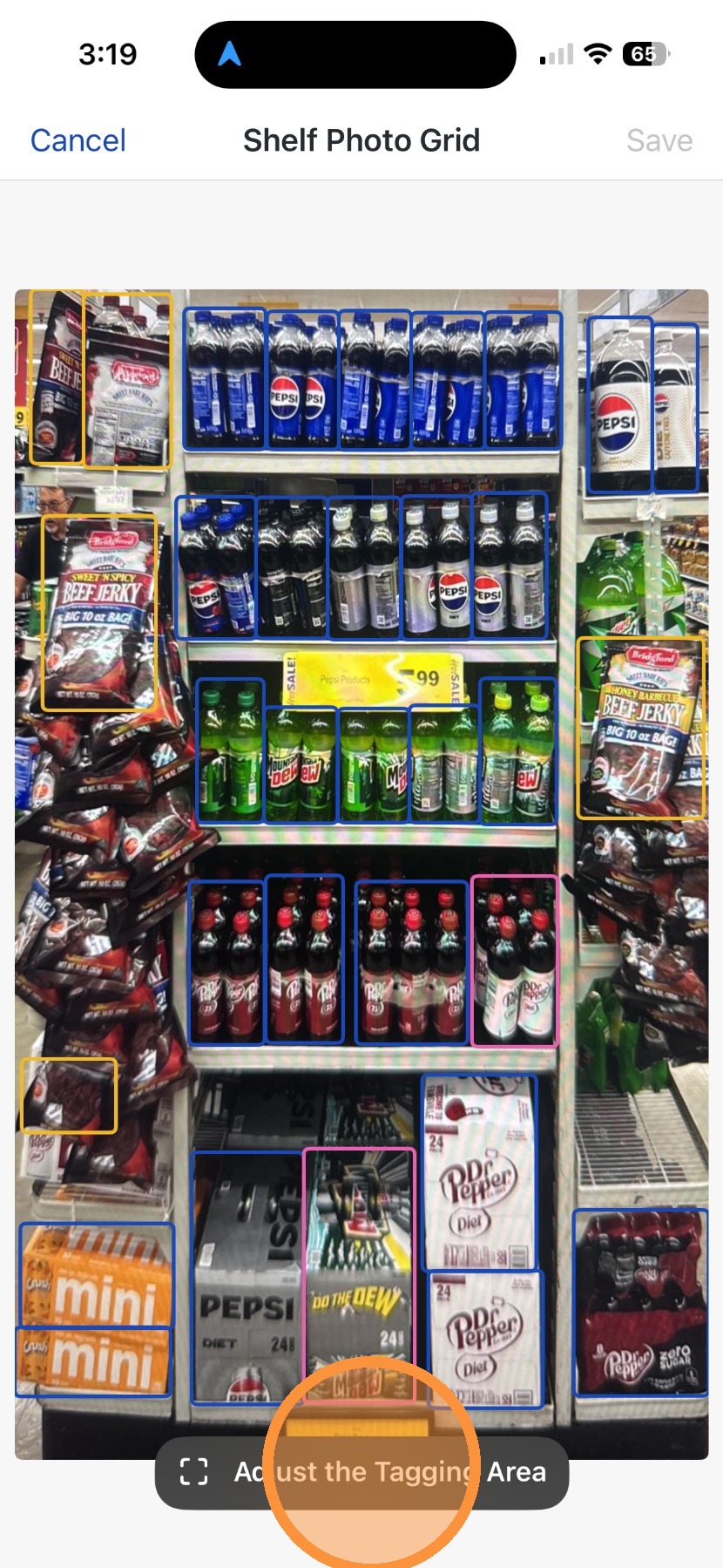
Tap Adjust the Tagging Area to set the tagging area that contains meaningful product tags. This will help bulk-ignore any extraneous product tags. This is an optional step.
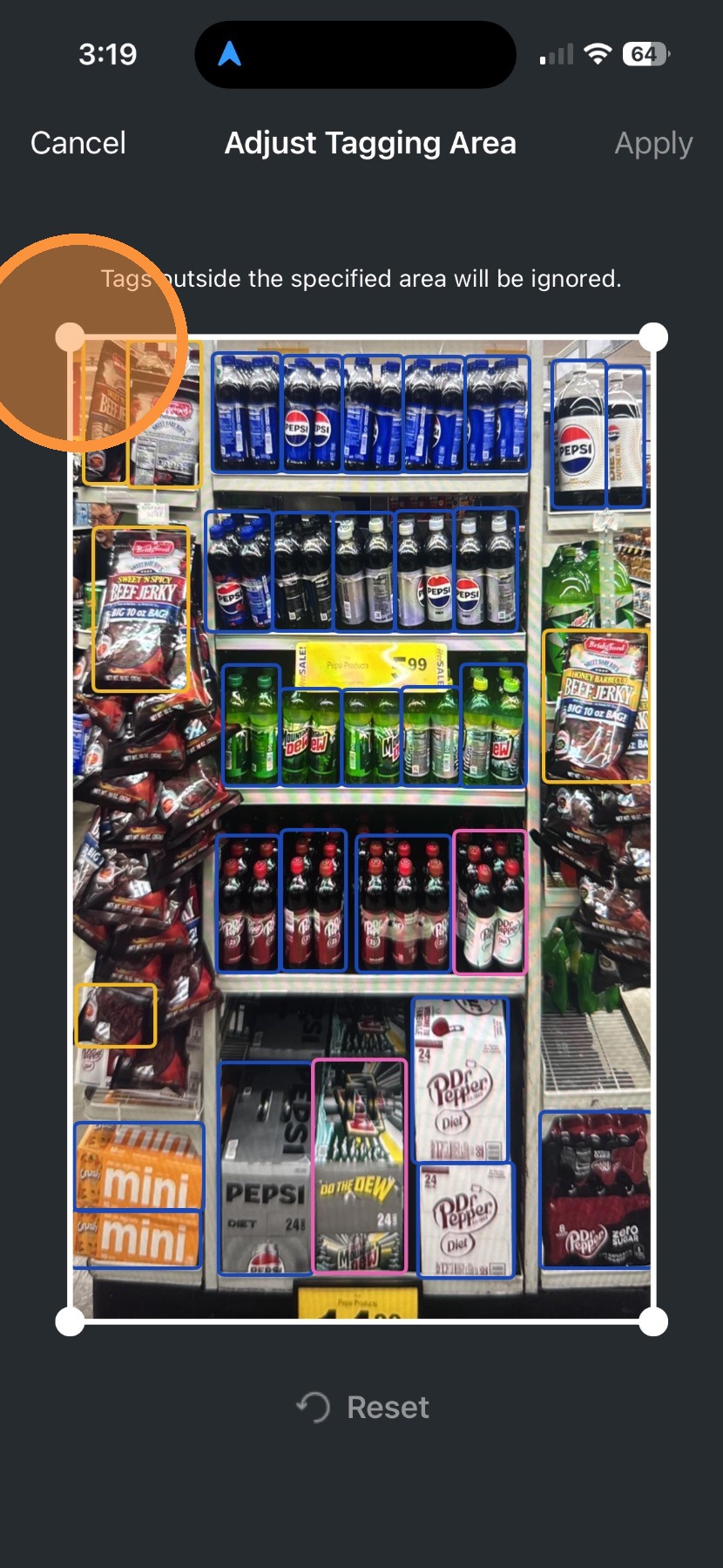
Tap on any corner to begin adjusting the Tagging Area.
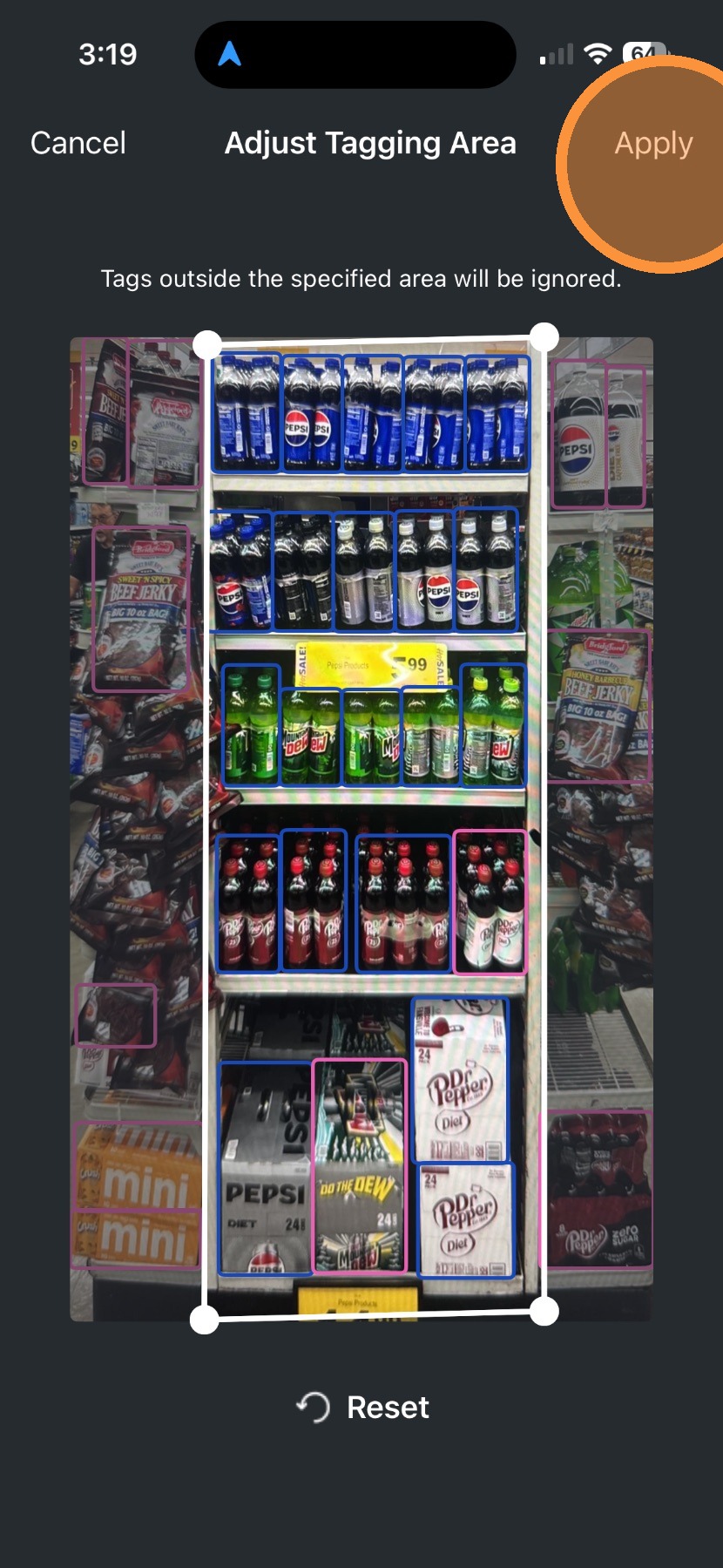
As the Tagging Area is adjusted, you can see that product tags outside the area turn pink to indicate that they are being edited to be ignored.
Tap Reset to set the Tagging Area back to the state it was in when you started your tag edit session.
Tap Apply to see the adjustments reflected, with all tags outside of the Tagging area edited to 'Ignored'.
Note: There is no limit to how many times you can adjust the Tagging Area. Tap 'Adjust Tagging Area' again to make any additional changes.
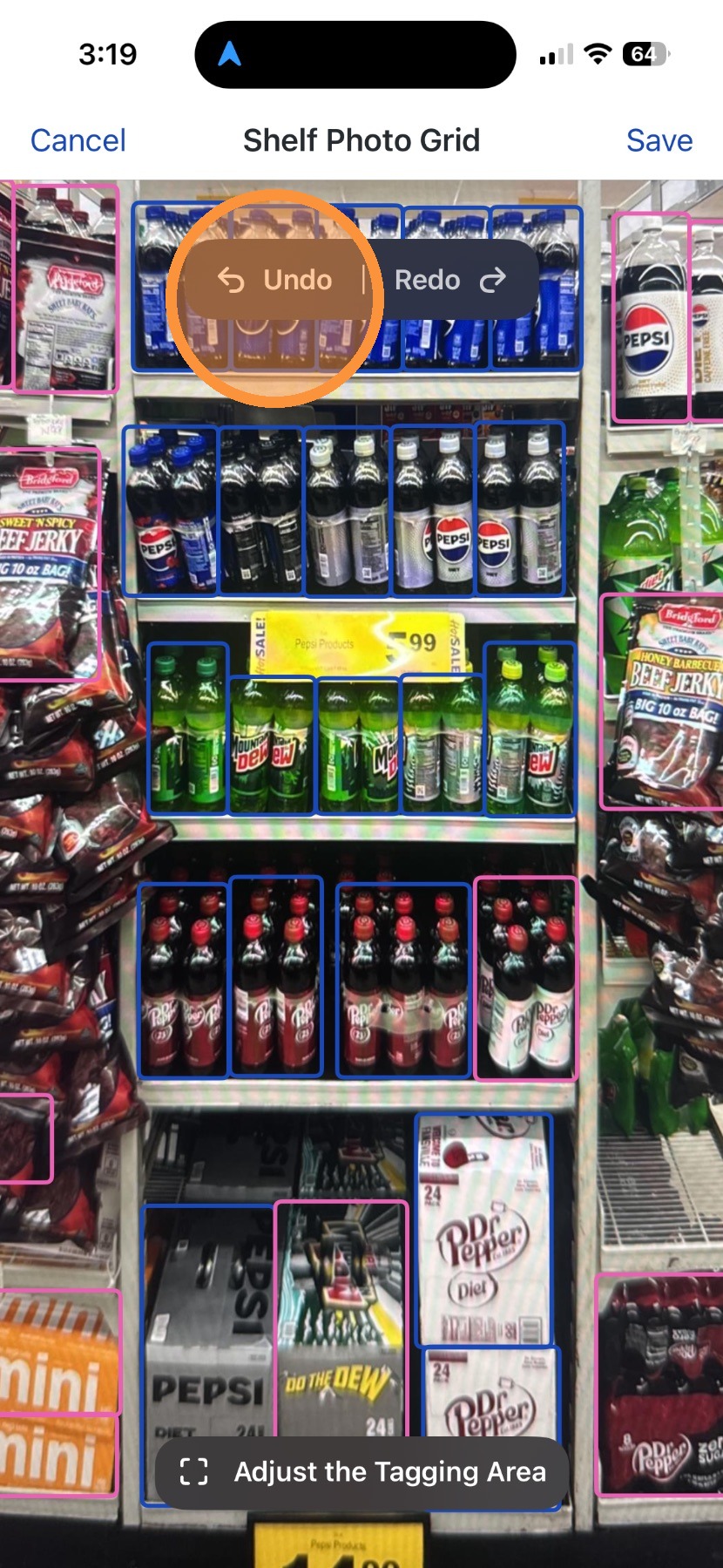
If you made an edit by mistake, you can tap Undo to undo your edit(s).
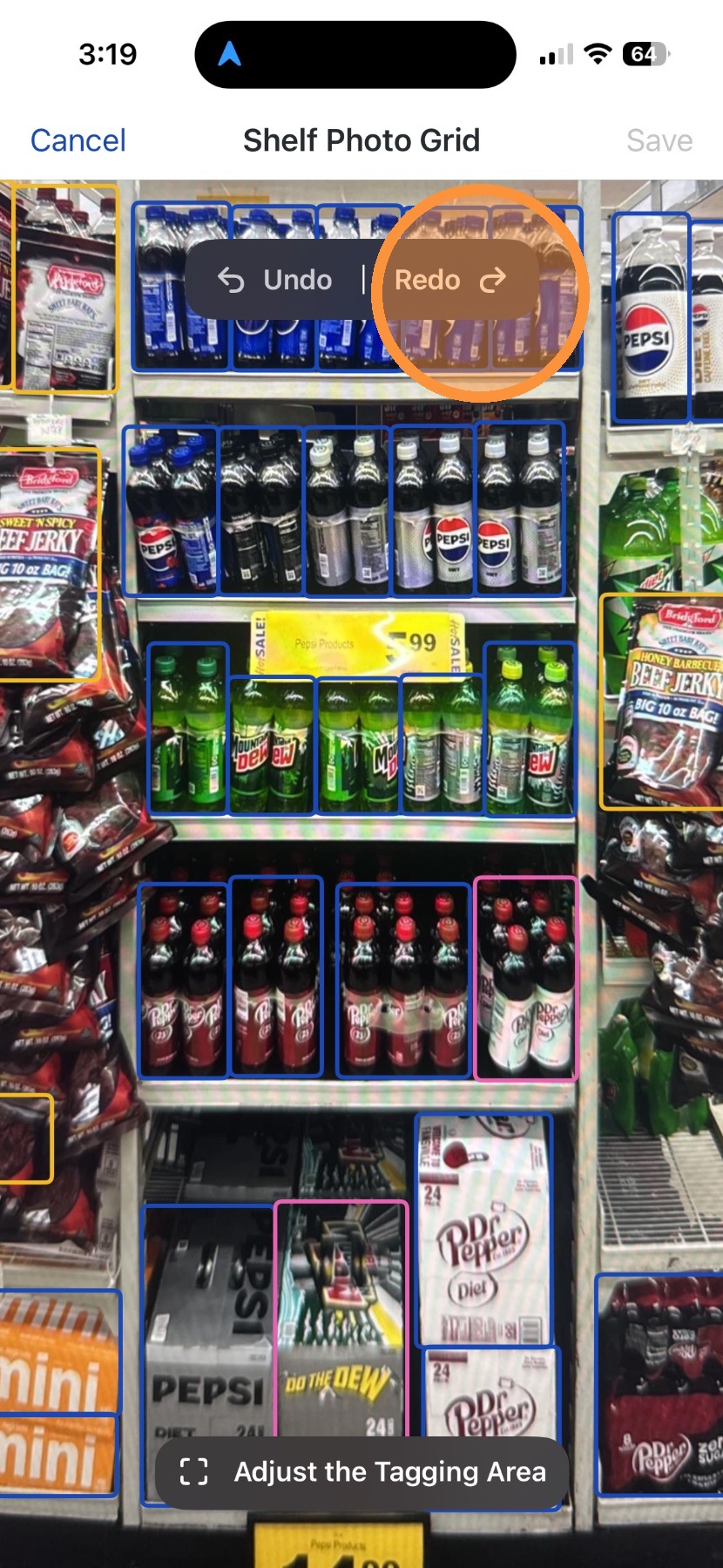
You can also redo edit actions by selecting Redo.
Tap a single bounding box to select it to apply an edit action.
Tip: A long tap on any bounding box will display the product information for that tag. This does not actively select this tag to be edited.
Tap additional bounding boxes to select multiple facings for simultaneous editing. The selected action will be applied to all of the product bounding boxes you selected.
To change the selected tag(s) to a different product, tap Product.
Search for a product using either Basic or Advanced Search functionalities.
Basic Search - contains logic to search keyword inputs across Name, Pack Size, Pack Type, Size, UPC, or EAN. If any value entered exists in any of those fields, a result will be returned.
Advanced Search - contains logic to search for the specified value in each product field. Supported product fields are Name, UPC or EAN, Supplier, Brand Family, Brand, Pack Size, Pack Type, and Size. When more than one field is populated, all criteria must be met (AND logic). This search function is recommended when you want to explicitly search for products using a value for each field (ie, UPC).
Tap anywhere on a product result to see more details about the product. The UPC or EAN will always be displayed in the collapsed view, when present, as applicable.
Tap Select to update all previously selected products with this product selection.
Users will receive a message that items were updated with the selected product.
All edited tags will appear in pink.
Tapping Save will save all of your edits and return you to your tag results view. After saving, you will receive a confirmation message that your tag edits have been saved.